![SCANIFLY-LOGO-Color-2022.jpg]](https://help.scanifly.com/hs-fs/hubfs/SCANIFLY-LOGO-Color-2022.jpg?height=40&name=SCANIFLY-LOGO-Color-2022.jpg)
- Date of this Update: 4/21/26
- How to get access to the tool
- Contact your Scanifly Account Manager or reach out to hello@scanifly.com to have the tool turned on for your Company.
- How to manage team access to the tool
- Navigate to Settings > Team and update the permissions for the team members that you would like to have Access to the tool. https://portal.scanifly.com/team-list
- Proposal Settings:
- Manage Proposals - Admin level access to settings and all proposal adjustments.
- Create Proposals - Sales level permission to create and edit existing proposals including access to project builder. No access to settings.
- View Only - Access to proposal tool to view existing proposals, unable to make adjustments to project builder or settings.
- No Proposal Access (Default) - Unable to view/see proposals at all. No UI showing proposals in home page or design menu.
- How to access to the tool from Scanifly
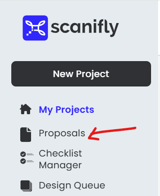
- Access from Scanifly home page on left menu: https://portal.scanifly.com/projects-list
- Access from within a Design (select a design from home page, and look on left side "Proposals")
- How to create a proposal (basic user)
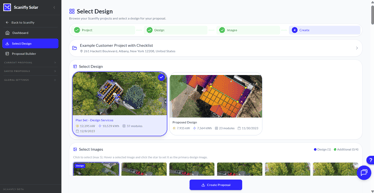
- Navigate to your project inside of Scanifly that has a design that you would like to make a proposal for. Click on "Proposals"
- The select Design page should load. Select the design you would like to use for your proposal as well as up to 4 more optional photos to use in your proposal.
-
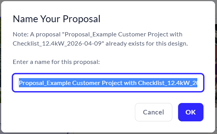
- Once you have selected your design and photos, click "Create Proposal" and provide the name that you would like to Save your proposal save file name.
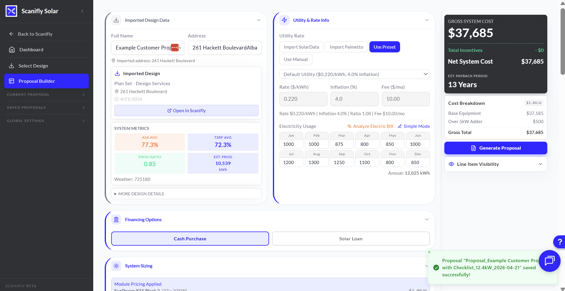
- The project builder will now load. This is where you can make your adjustments to the proposal before generating a proposal PDF to share with a customer.
- Once you have selected your design and photos, click "Create Proposal" and provide the name that you would like to Save your proposal save file name.
-
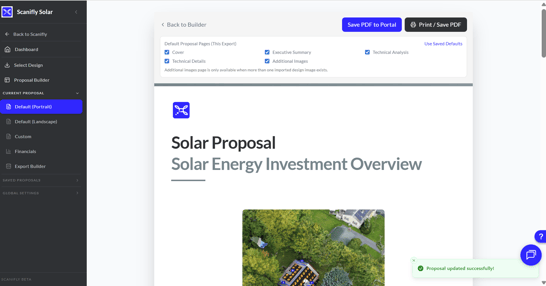
- Once you have made your adjustments, you can click "Generate proposal" to view your Default Portrait proposal PDF.
- Once you have made your adjustments, you can click "Generate proposal" to view your Default Portrait proposal PDF.
-
-
- If you would like to make adjustments to the proposal, click "Back to builder" to make your adjustments.
- If you would like to proceed with this proposal and generate a PDF and/or Save it to albums within the project, you can click the Save PDF to Albums or Save PDF button to export and save your proposal.
- You can also look at the left menu under 'Current proposals' to use a Landscape default proposal or to view any custom proposal templates that you may have. The settings and adjustments you made in your builder will apply to all of these proposal template options. You can think of them as different ways to export your proposal.
-
- How to Setup Global settings (advanced user)
-
Configurations: Configurations are like 'settings profiles' they can be used to have different pricing models or to track changes over time. While testing I recommend saving down your file each day to try to prevent accidental data loss to your proposal settings as we update the tool.
-
Template Builder: Tutorial to come. Can utilize code and/or AI to create custom documents, utilizing the variables and other data from the proposal tool and Scanifly design/project data.
-
Variables: Customizable formulas and datapoints that are used as the backbone for the Proposal Builder / pricing adjustments.
- All: Shows ALL variables and datapoints. Worth reviewing to get a sense of scope.
- Custom: Ability to create custom formula or data. EX: "Day rate for laborer = 500" etc.
- AI: Ability to use an AI prompt to ask a question about any variable/variables.
- Input: Ability to create custom inputs that can be shown on builder. EX: "# of Days expected for install" etc.. can be inputs, dropdowns etc.
- Adders: $/watt, fixed cost, % adders that are used to increase system cost.
- Incentives: Reverse of adders. Reduce system cost. $/watt, fixed cost, % options.
- Import Adders: Cost based custom logic. EX: If any roof is over 40 degrees, add $500 for each roof over 40 degrees. Can use formulas to create complex cost scenarios that automatically calculate and affect system price.
-
-
-
Equipment
- Inverters / Optimizers & Other BOS: Can add and remove items that are accessible on project builder. Otherwise there is no logic electrically etc. Just a # selected and cost (can be $0)
- Module: Need to turn on module based pricing in Global Settings > Defaults and Assumptions > Pricing Configuration > Module Based pricing. Once turned on you can sync your module library and add a $/watt/panel or introduce tier pricing for modules with various pricing ranges for each panel.
-
-
-
Company Details
- Company branding defaults and settings to be used on default proposal and custom proposals.
-
APIs and Credentials
- Contact Scanifly for an OpenAI key to use for testing if you would like to use some of the AI features.
- Contact Scanifly for questions about SignNow API. (No current partnership with Scanifly ~$1.50/signature)
- Utility Provider Integrations are in progress.
-
Media Library
- Note: This is currently only storing in browser storage so this library will not persist between users yet.
- You can add custom media here to reference in custom proposal templates built in the template builder.
-
PDF Content Pages
- You can upload PDF's and set basic logic rules for PDF inclusion. EX: Module = XYZ, include this PDF at the end of the default proposal.
- Can add PDF with logic or without and can add at beginning or end of proposal.
-
Line Cost Visibility
- Controls visibility on the default proposal for pricing related line items.
- Defaults chosen here apply by default but user can override when exporting proposal.
-
Defaults and Assumptions
- Utility Library - manually add your utilities and estimated rates/fees. For now this feature/savings is simple formula based on this, will expand over time.
- Project Builder visbility - control what access the team has to settings on builder. If toggled off users will not see that section on the builder. Can help keep UI clean to just settings you use.
- Pricing configuration: Set a base price per watt for all of your panels or turn on Module based pricing to have more pricing control. Once toggled on navigate to Equipment > Modules to access module based pricing controls.
- Ground mount presets - set defaults for ground mount pricing scenarios. EX: Short residential AC trench, long residential DC trench etc.
- Loan provider library - set default for loan provider name, percentage and term length.
- Environmental Impact Calculations: adjust rates that impact calcs are used for default proposal.
-
- How to make custom templates (advanced user)
- Advanced users - Details to come.