![SCANIFLY-LOGO-Color-2022.jpg]](https://help.scanifly.com/hs-fs/hubfs/SCANIFLY-LOGO-Color-2022.jpg?height=40&name=SCANIFLY-LOGO-Color-2022.jpg)
A preset is the container for most of your Proposal Tool configuration. Understanding presets is the difference between settings that stick and settings that quietly disappear, so read this before you spend time in global settings.
🚧 Admin only 🚧 Presets are managed in global settings, which requires the Manage proposals permission.
For more information on Proposal Tool Permissions: Who Can Do What, please see this support article: Proposal Tool Permissions: Who Can Do What.
What a Preset Is
A preset is a saved group of settings. Think of it as one complete way your company works, bundled and named.
In practice, when you change global settings you are changing preset settings. That is the single most useful thing to know about them.
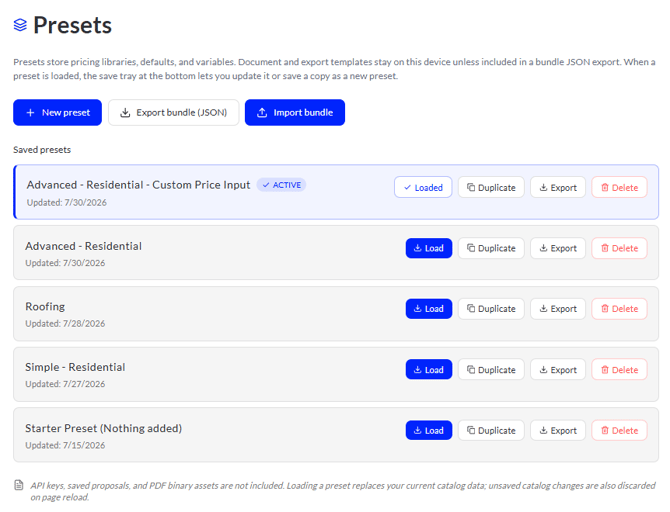
What a Preset Controls
A preset carries the following:
- Variables. Your custom, AI, and input variables, plus adders, incentives, and import adders.
- Equipment. Your inverters, optimizers, and other balance of system items, along with module tier pricing if you use it.
- Company details. Your proposal contact fields, Default Proposal Controls, and color scheme.
- Line item visibility. Which cost and incentive lines show on the proposal by default.
- Defaults and assumptions. Your utility, loan provider, lease and PPA provider, ground mount, and environmental libraries.
A preset also controls Project Builder section visibility, which is what makes one preset feel simple and another feel advanced to the salesperson using it.
For more information on Control What Your Team Sees: Section and Line Item Visibility, please see this support article: Control What Your Team Sees: Section and Line Item Visibility.
How Many Presets You Need
One preset is fine. If your company has a single way of working, a single preset that represents your company specifics is all you need.
Multiple presets make sense when you genuinely sell in more than one way:
- One for commercial and one for residential
- One per territory, when rates, incentives, or providers differ by region
Every additional preset is another set of settings to maintain, so add them because a real difference requires it, not for tidiness.
Two Ways to Get a New Preset
Pick whichever path fits what you're starting from.
Option A: Create a New Preset
In global settings, create a new preset. When you are setting up for the first time, start it as a new blank preset so you are not inheriting settings you did not choose.
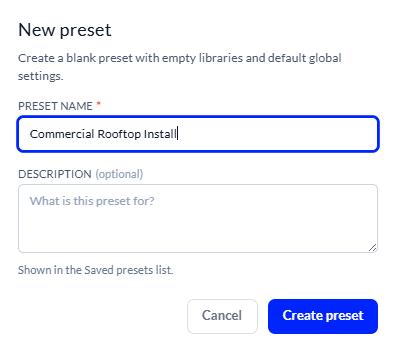
📘 Pro Tip: If your new preset is mostly the same as an existing one, duplicate the existing preset instead of starting blank (see Option B), then change only what differs. That saves rebuilding libraries you already got right.
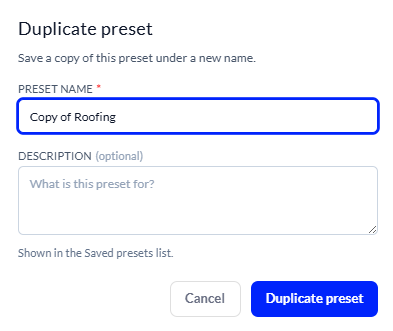
Option B: Duplicate an Existing Preset
Duplicate a preset to get a copy carrying all of its settings, then adjust the copy. This is the fastest path to a commercial preset when you already have a residential one working.
Save Your Changes
This is the step that matters most.
When you change a setting in global settings, you have three options:
- Update Preset. Saves your change to the preset you are working in.
- Discard. Throws your change away and leaves the preset as it was.
- Save as a new preset. Leaves your current preset untouched and saves your change into a new preset instead.

❗ IMPORTANT Changes to a preset are not saved until you click Update Preset, discard them, or save them as a new preset. If you leave global settings without choosing one of these three, your changes are lost and cannot be recovered. Save as you go, not at the end of a long session.
What Your Salespeople Experience
Your team does not manage presets. They select one in the editor, and their choice affects which sections they see and which defaults load.
One behavior is worth knowing so you can answer the question when it comes up: the last preset used with a design becomes that design's default. The next time someone builds from that design, the same preset loads.
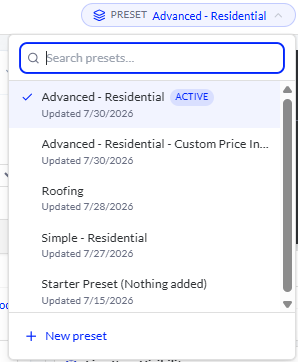
For more information on Choose a Preset for Your Proposal, please see this support article: Choose a Preset for Your Proposal.
For more information on Set Up the Proposal Tool: Order of Operations, please see this support article: Set Up the Proposal Tool: Order of Operations.
For more information on Company Details, Branding, and Default Proposal Controls, please see this support article: Company Details, Branding, and Default Proposal Controls.
For more information on Defaults and Assumptions: Utility, Financing, Ground Mount, and Environmental Libraries, please see this support article: Defaults and Assumptions: Utility, Financing, Ground Mount, Environmental.
If you have any questions or need further assistance, please reach out to our chat support or email hello@scanifly.com.